Training Where the Signal Isn't: Keeping Registers and Evidence Honest Offline
Workshops, mine sites and rural venues rarely have reliable internet. How to capture attendance, logbook entries and PoE evidence where training actually happens — and how skillSYMS Desktop does it offline with an audit trail.
On this page(6 sections)
A facilitator finishes a practical session in a workshop two hours from the nearest town. Twelve learners attended. Three arrived late. Two uploaded photos of their work to a group chat because there was nowhere else to put them. The register is a sheet of paper with a coffee ring on it.
On Monday someone will type that sheet into the system. They will guess at a surname, miss a late arrival, and save the photos from the chat into the wrong learner’s folder. The record will say the register was captured on Monday at 10:14. The training happened on Thursday.
None of that is anyone’s fault. It is what happens when the place training happens is not the place the connection is.
The connection problem is a records problem
Most learner management systems assume a browser and a signal. That assumption holds in an office and fails in exactly the places occupational and workplace training happens most: workshops, production floors, mine sites, farms, community venues and rural satellite campuses.
When the signal fails, work does not stop — records move to paper and phones, and then they are reconstructed. Reconstruction has three costs.
- Time. Every register and every logbook entry is captured twice.
- Accuracy. Handwriting, memory and group chats are where names, dates and files go wrong.
- Credibility. The record shows when something was typed, not when it happened. An auditor comparing a register with a session date sees a gap, and a gap invites questions.
The fix is not “better Wi-Fi at every venue”. It is capturing the record where the work happens and bringing it back with its history intact.
What good offline capture looks like
Before choosing any offline approach, it helps to be clear about what it has to guarantee. Offline software that simply saves locally and uploads later is better than paper, but it can create new problems if it overwrites other people’s work or loses its provenance on the way.
Here is the checklist we used when building offline working into skillSYMS Desktop. It is worth saving and using for any tool you evaluate.
| Question | Why it matters | What to look for |
|---|---|---|
| Does it only take offline what you need? | A laptop should never carry the whole institution | Scoped, expiring packs — a class, a session, one learner’s logbook |
| Is offline data encrypted on the device? | Laptops get lost and stolen | Keys held by the device, not in a file next to the data |
| Can an administrator switch it off or wipe a device? | Staff leave; devices go missing | Device trust, revoke and remote wipe |
| Does each change keep when and where it was captured? | The audit trail must survive the trip | Capture time, sync time, device and person on every change |
| Is the offline record tamper-evident? | Offline edits happen without supervision | Signed, chained changes that the server verifies |
| What happens to conflicting edits? | The last save should never silently win | Both versions kept; a person decides |
| Does it keep working when you close the laptop? | Real sessions get interrupted | Forms that save as you type |
| Does it respect a slow connection when you are back? | Rural connections are thin | Records first, large files when the connection allows |
If a tool cannot answer most of those, it is moving the reconstruction problem, not solving it.
How it works in skillSYMS
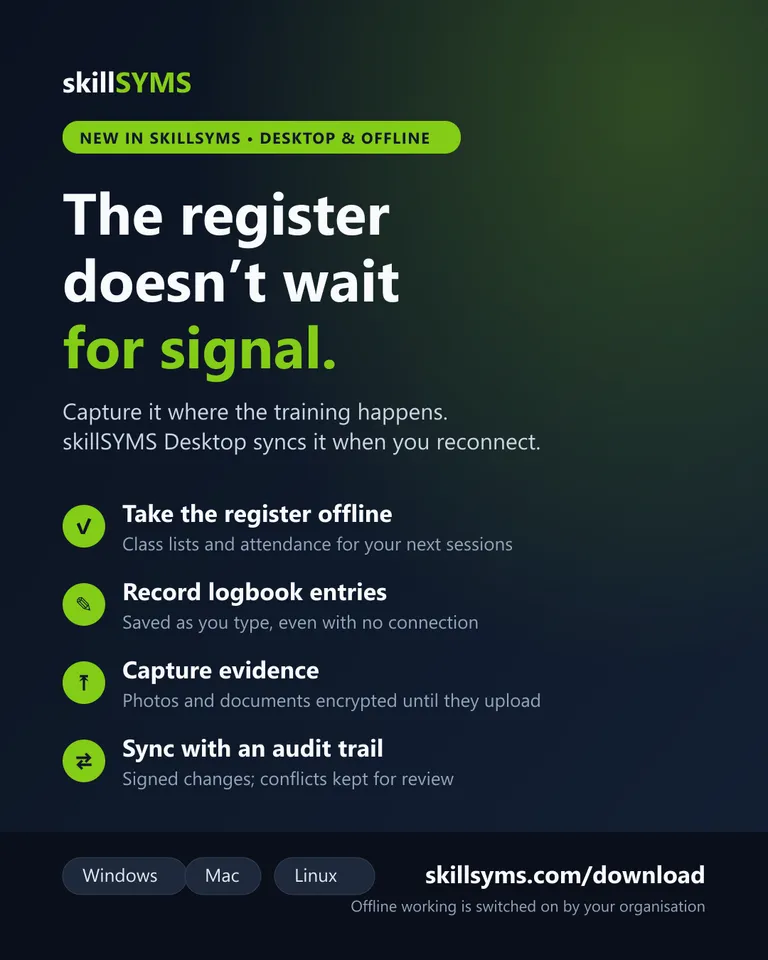
Offline working lives in skillSYMS Desktop, the installed app for Windows, Mac and Linux. It is built on four ideas.
1. Take only what you need
Nobody downloads the institution. Staff open Me → Offline Packs on skillsyms.com and choose My upcoming classes — the class lists and registers for every session they facilitate in the next 36 hours — or a single session further ahead. Learners open Work Offline and add My logbook and evidence.
The next time skillSYMS Desktop is online, it downloads those packs. Every pack expires after the retention period your organisation sets, and access is checked again on every download: a facilitator moved off a class loses that class’s pack.
2. Capture it on site
On site, the Sync Centre (from the tray, or Work offline on the welcome screen) opens the offline pages:
- Attendance — the roster for each session with Present, Late, Absent and Excused. Every tap is saved immediately, with the time you marked it. That matters: when the register syncs at 17:00, nobody is recorded late because of when the laptop found a signal.
- Logbook — a learner’s workplace entry, saved as they type. Entries sync as drafts into the normal supervisor process, so only verified entries count toward hours, exactly as online.
- Evidence — drag photos and documents onto the page. Each file is encrypted on the computer until it uploads into the learner’s portfolio.
3. Sync with the history intact
When the computer is back online, changes sync automatically. Every change carries the person, the device, when it was captured and when it synced, and it is signed by the device and chained to the change before it. If a change was altered or arrives out of order, the server refuses it.
The writes themselves go through the same rules as the website. An offline attendance mark is checked against the session’s facilitator and roster; an offline logbook entry uses the logbook’s own duplicate protection, so a retried sync can never add it twice.
On a thin connection the Sync Centre keeps records flowing and holds large evidence files until the connection improves. You can also set uploads to core records only or pause them.
4. Never let the last save win
Suppose a facilitator marks a learner absent offline while an administrator, back at the office, marks the same learner excused because a medical note arrived. When the facilitator syncs, skillSYMS sees the record changed after the offline copy was taken. Instead of overwriting either person, it creates a conflict with both versions and the full offline history of that record.
An administrator opens Settings → Offline Sync, compares the two, and keeps the server version, keeps the offline version, or escalates it. The decision is recorded.
What it deliberately does not do
- It is off by default. An administrator switches it on under Settings → Devices → Desktop policy, and only devices they trust can hold offline data.
- Assessment results stay online. Marks are a moderated process and are not captured offline.
- It is not a full copy of skillSYMS. Offline working covers the register, the workplace logbook and portfolio evidence — the records that most often end up on paper.
A practical plan for your next remote session
- Switch it on for one team. Enable offline working in the desktop policy and trust the laptops your facilitators actually carry.
- Install skillSYMS Desktop from skillsyms.com/download and sign in once while online, so each computer registers.
- Add “My upcoming classes” the day before the session, while everyone is still connected.
- Run the session offline. Take the register in the app and capture evidence as you go.
- Reconnect and check the Sync Centre. Everything should show as synced; anything that needs review is listed with the reason.
That is one session re-typed less, and one register that shows what happened, when it happened.
Next steps
- Setting it up: follow the step-by-step guide to offline working.
- Seeing the detail: read what works without a connection.
- The logbook it syncs into: see workplace logbook software, or request a demo.
What's new in skillSYMS
- MicroQuests in the browser, in the app and by email
- skillsyms.com/learn: take LearnChat MicroQuests in any browser with buttons instead of chat replies. You get the same quests, wallet, progress and certificates as on WhatsApp
- Learn by email: anyone can ask for a personal learning link on skillsyms.com/learn. There's no account and no password, and the link keeps you signed in on that device for 30 days
- Schools & Early Learning (alpha): grades, registers, marks, promotion and SA-SAMS import
- Learners → Schools & ECD: set up a school or ECD centre under its provincial department, with grades, classes and subjects for each academic year
- Choose your institution type (primary, secondary, combined, independent, ECD centre and more) to switch on the matching pack
- Schools & Early Learning: learner support, behaviour, governance, ECD development and a guardian portal
- My classes: a teacher's registers still to take today, open assessment tasks and which learners need accommodations
- Teaching assignments and teaching scope: start by observing captures outside a teacher's classes, then limit teachers to their own classes and subjects
Ready to simplify your QCTO compliance?
See how skillSYMS can help your organisation manage digital PoE and MIS exports.