The First-Screen Problem: Why Training Teams Lose the Morning to Menus
Training providers don't lack data — they lack it in the right place. How to design the first screen your team opens around overdue work, EISA readiness and quick actions, and how skillSYMS Page Composer does it.
On this page(6 sections)
- Why the first screen matters more than the fiftieth
- What belongs on a training provider’s first screen
- 1. What is wrong right now?
- 2. Are we on track?
- 3. What changed?
- 4. What do I do next?
- Different people, different first screens
- How skillSYMS solves it: Page Composer
- A fifteen-minute exercise for your team
- Put the right work front and centre
Ask a training provider’s operations manager what they do first each morning and the answer is rarely “open the dashboard”. It is usually a small tour: the assessments list, filtered to overdue. The learner list, filtered to something. A report they export and paste into a spreadsheet that holds “the numbers I actually watch”. Then, finally, the work.
None of those numbers are hidden. They are simply not where anyone is looking. We call this the first-screen problem, and it quietly costs providers more than any single missing feature.
Why the first screen matters more than the fiftieth
Every system has a first screen, and in most learner management systems it was designed for nobody in particular. It has to work for the facilitator, the finance clerk, the quality officer and the CEO, so it shows a little of everything — totals, a chart, a welcome message — and a menu that leads to the rest.
That design has three costs that rarely get named:
- Exceptions arrive late. An overdue assessment is a problem on day two and a crisis on day twenty. If the only way to see it is to go looking, it is found on day twenty.
- Readiness is a report, not a signal. Whether learners are ready for an external integrated summative assessment (EISA), or blocked from one, is the question a provider is ultimately judged on. When answering it means remembering to run something, it gets answered the week before a deadline.
- Navigation becomes training. New staff spend their first weeks learning where things are rather than what matters. The menu becomes the job description.
The fix is not “more dashboard”. It is a first screen designed around the work in front of the team — and arranged by the people who know what that work is.
What belongs on a training provider’s first screen
Before touching any tool, it helps to decide what the page is for. For most skills development providers, a good first screen answers four questions in this order.
1. What is wrong right now?
Lead with exceptions, not totals. The strongest candidates:
- Overdue assessments, ideally split by how overdue — something one to five days late needs a nudge; something fifteen days late needs a conversation.
- Learners blocked from an EISA by an outstanding requirement.
- Incomplete portfolios of evidence.
- Missing ID documents, because they block certification and are always discovered at the worst possible moment.
2. Are we on track?
A few rates, shown as progress rather than bare numbers: completion, attendance across active classes, and portfolio of evidence coverage. Resist adding more. Every extra rate dilutes the ones that matter.
3. What changed?
Recent activity gives context to the numbers above it — a jump in pending assessments reads very differently if you can see that three facilitators submitted a batch this morning.
4. What do I do next?
Put the three or four most common actions on the page itself: add a learner, take attendance, capture an assessment, run a report. Moving an action from “somewhere in the menu” to “on the first screen” is the cheapest productivity gain available to most teams.
Different people, different first screens
An executive, an operations manager and a quality officer do not need the same page, and pretending otherwise is how first screens end up designed for nobody.
| Role | What the first screen should lead with |
|---|---|
| Executive | Headline numbers and exceptions. Little detail, no data entry. |
| Operations | What is overdue, what is blocked, what happened — plus quick actions. |
| Compliance / quality | Readiness and record quality: EISA ready and blocked, Statements of Results ready, missing IDs, incomplete records. |
| Delivery | Active learners, attendance and pending assessments, for the people running classes. |
The practical answer for most providers is to pick the arrangement that fits the people who spend the most time in the system, and make sure the numbers each person should not see are hidden from them rather than removed for everyone.
How skillSYMS solves it: Page Composer
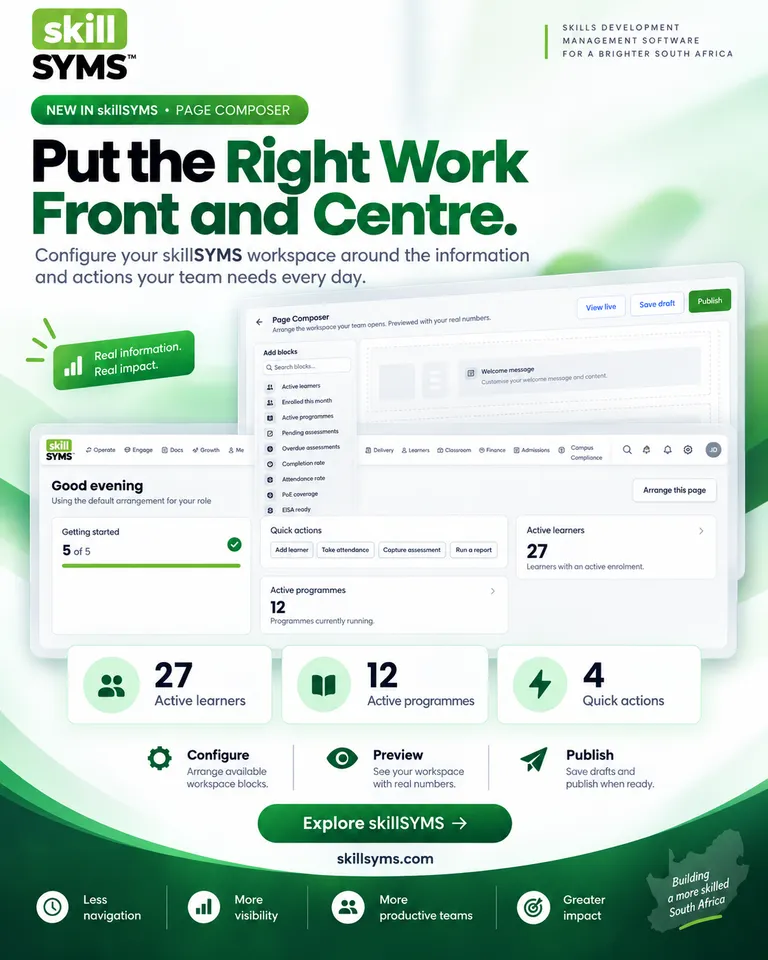
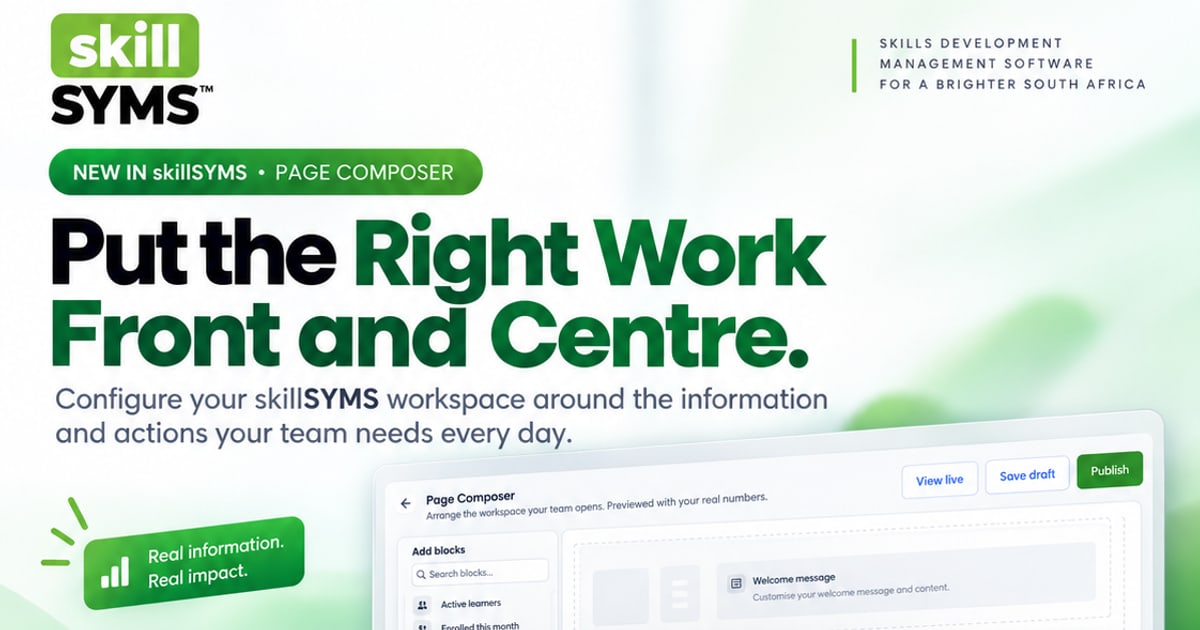
Page Composer is the skillSYMS tool for arranging My Workspace, the page your team opens to see its numbers and act on them. It is built around the principles above.
Start from a preset, not a blank page. A blank canvas is why most dashboard builders go unused — the first question is “what should go here?” Page Composer answers it with five starting points: Executive, Operations, Compliance, Delivery and Getting started, each matching the table above.
Arrange real blocks. The palette holds the numbers skillSYMS already calculates: active learners, enrolments this month, active programmes, pending and overdue assessments, completion, attendance and PoE coverage, EISA ready and blocked, Statements of Results ready, incomplete portfolios, missing ID documents, incomplete learner records, a needs-attention panel, recent activity, overdue assessments by age, a getting-started checklist, quick actions and a free-text note for your team. Drag to reorder, widen or narrow each block on a 12-column grid, and use the keyboard buttons on every block if you are not using a mouse.
Preview with your real numbers. Blocks in the composer render through exactly the same code as the live page, against your own data. An arrangement that looks balanced with grey placeholder boxes rarely looks balanced once “1,284” sits next to “3” — so you see the real thing while you arrange it.
Draft, then publish. Changes are staged. Save a draft, keep adjusting, and press Publish when you are ready. Only then does everyone in the workspace open the new arrangement.
Permission-aware by design. Every block carries the permission needed to see it. Somebody without access to learner records won’t see learner blocks, and the page tells them how many blocks were hidden — so an empty space reads as a permission, not a fault.
Nothing is taken away. My Workspace is its own page under Operate. The original skillSYMS home dashboard is unchanged, so no one loses a screen they rely on while you experiment.
A fifteen-minute exercise for your team
You don’t need a workshop to fix the first-screen problem. Try this:
- Ask three people what they check first every day, and write down the exact numbers they name.
- Circle the ones that are exceptions — things that are wrong — and put those at the top.
- Pick the two or three actions they reach for most.
- Open Design OS → Page Composer, start from the closest preset, and swap in what you circled.
- Preview it with real data, save a draft, and show those three people before you publish.
Then look again in a month. A good first screen is edited, not designed once.
Put the right work front and centre
The data a training provider needs is almost never missing. It is simply somewhere else. Page Composer lets you decide what your team sees first — the right numbers, the right exceptions and the right actions — and check it against real data before anyone depends on it.
- Existing customers: open Design OS → Page Composer in skillSYMS, or follow the step-by-step guide to arranging your workspace.
- Exploring skillSYMS: see what Page Composer puts on the page or request a demo.
What's new in skillSYMS
- MicroQuests in the browser, in the app and by email
- skillsyms.com/learn: take LearnChat MicroQuests in any browser with buttons instead of chat replies. You get the same quests, wallet, progress and certificates as on WhatsApp
- Learn by email: anyone can ask for a personal learning link on skillsyms.com/learn. There's no account and no password, and the link keeps you signed in on that device for 30 days
- Schools & Early Learning (alpha): grades, registers, marks, promotion and SA-SAMS import
- Learners → Schools & ECD: set up a school or ECD centre under its provincial department, with grades, classes and subjects for each academic year
- Choose your institution type (primary, secondary, combined, independent, ECD centre and more) to switch on the matching pack
- Schools & Early Learning: learner support, behaviour, governance, ECD development and a guardian portal
- My classes: a teacher's registers still to take today, open assessment tasks and which learners need accommodations
- Teaching assignments and teaching scope: start by observing captures outside a teacher's classes, then limit teachers to their own classes and subjects
Ready to simplify your QCTO compliance?
See how skillSYMS can help your organisation manage digital PoE and MIS exports.