Your Inbox Should Not Be a Black Hole: Why Enquiries Go Unanswered in Shared Mailboxes
Shared inboxes like admissions@ and info@ are where training providers lose enquiries. Why it happens, a checklist for running a shared mailbox properly, and how skillSYMS Mail shows status and response targets.
On this page(6 sections)
Every training provider has one. It is called admissions@, or info@, or enquiries@, and a few people “keep an eye on it”. Learners write to it about an EISA date. Employers send signed logbooks. A SETA asks for a data file. Finance gets a remittance advice.
Ask who is responsible for answering any single message in it, and the honest answer is usually “whoever sees it first”. That is how a shared inbox becomes a black hole. Nobody is ignoring it. Everybody can see it, so everybody assumes somebody else has dealt with it.
Why shared inboxes swallow enquiries
A shared mailbox was designed for one person reading their own email. Put five people in front of it and four things go wrong, quietly.
- Read is not answered. Once a colleague has opened a message, it looks handled to everyone else. Read or unread tells you whether somebody glanced at it. It says nothing about whether the learner got a reply.
- Nobody owns the reply. Without a named owner, a message that needs a little effort, such as a check with finance or a question to an assessor, gets skipped by each person in turn.
- Nobody can see the clock. An inbox sorts by arrival time, not by how long the sender has been waiting. The message from Friday at 16:30 looks exactly like the one from Tuesday at 09:00.
- Everyone writes their own version. The same results letter or missing-documents request exists in five drafts folders, each worded a little differently. When somebody asks what learners were told, nobody can say.
The cost is rarely one dramatic failure. It is a steady trickle of learners who wait days for an answer, employers who phone because nobody replied, and a provider that looks less organised than it is.
What a well-run shared mailbox looks like
Tools help, but the fix is mostly a set of habits. Before changing any software, check your team against this list.
| Question | A black-hole inbox | A well-run inbox |
|---|---|---|
| Who can open this mailbox? | Anyone with the password | Named people, chosen for this mailbox |
| What state is this message in? | Read or unread | New, open, waiting on us, waiting on them, resolved |
| Who is dealing with it? | Whoever saw it first | Visible to everyone |
| When is a reply due? | Nobody knows | A response target, in business hours |
| How do we ask a colleague first? | Forward it and hope | An internal note on the conversation |
| What wording do we send? | Whatever is in someone’s drafts | An approved, published template |
| Are two people replying at once? | Found out afterwards | Visible before anyone starts typing |
A checklist to save
- Split mailboxes by purpose. Admissions, learner support, finance and compliance mail have different urgency and different people. One catch-all inbox hides all of it.
- Name the people for each mailbox. Access by job, not by who happened to be given the password.
- Agree a first-response target for each purpose, in business hours. A target nobody can meet gets ignored. A target that goes red overnight gets switched off.
- Separate “we are waiting on them” from “they are waiting on us”. Only the second one is urgent.
- Look at the exceptions first each morning. Start with what is unassigned or close to its target, not with the newest message.
- Ask colleagues in notes, not forwards. A forward creates a second copy that nobody closes.
- Approve the wording that goes out under your name. Results notices, missing-document requests and payment letters should have one published version.
- Resolve conversations deliberately. “Resolved” should mean the sender has what they needed.
How skillSYMS Mail helps
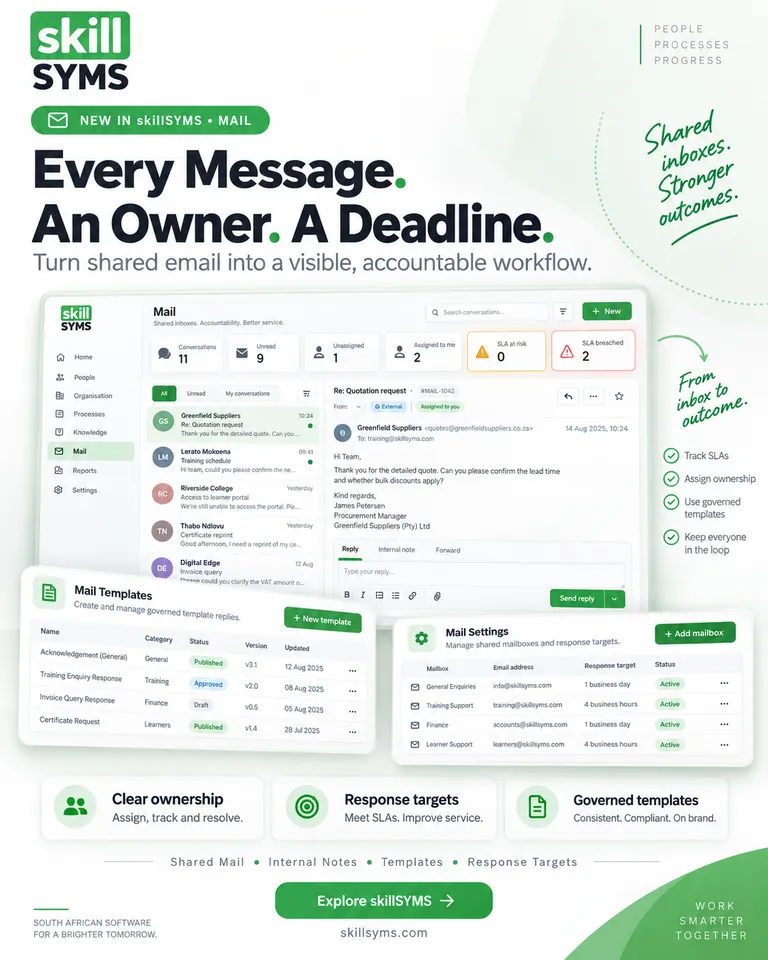
Mail is the shared inbox inside skillSYMS, under Operate → Mail. It is built around the checklist above.
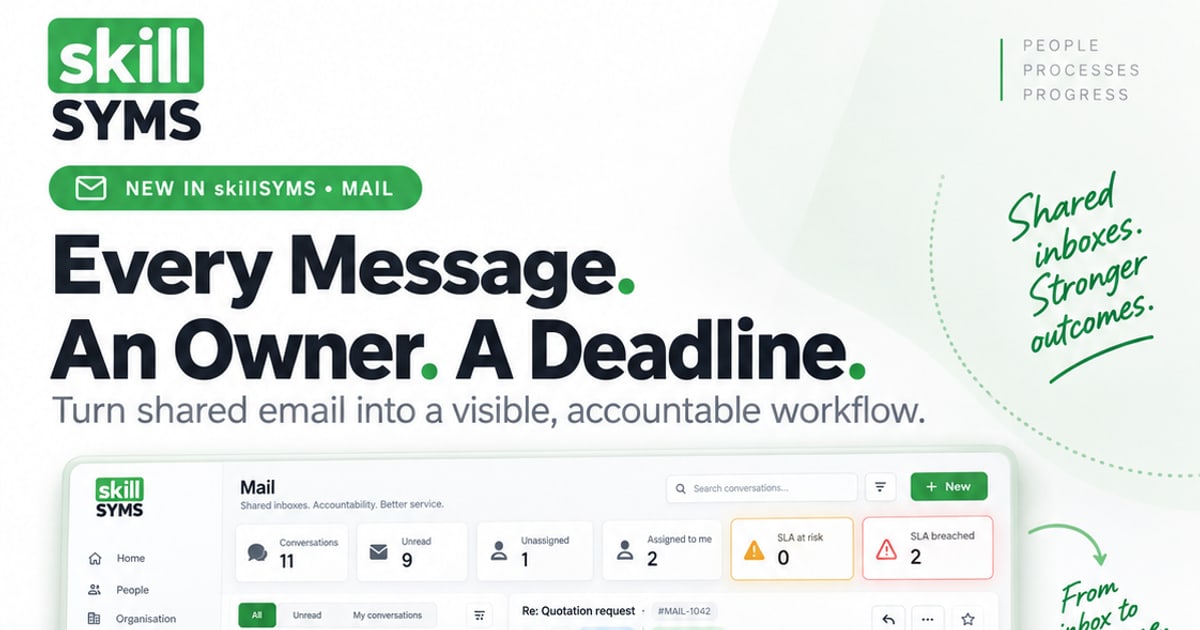
The exceptions come first. Above the conversation list sit counters for Unread, Unassigned, Assigned to me, SLA at risk and SLA breached. At risk means a first reply is due within the next hour. Breached means the target has passed with no reply. Unread is counted per person, because in a shared mailbox your colleague having read something does not mean you have.
Every conversation has a status. New, Open, Awaiting internal, Awaiting customer, Resolved. Sending a reply moves a conversation to Awaiting customer on its own. When the sender writes back, it reopens.
Response targets respect business hours. In Mail Settings → Response targets you set a first-response target in minutes and switch on Business hours only. A four-hour target on a message that arrives at 16:30 is then due the next working morning, not overnight. The clock starts when a message arrives and stops at the first reply.
Membership decides who sees what. Each mailbox has members, added as Viewer, Agent or Manager. The person who works admissions@ does not see accounts@ unless someone adds them to it, whatever their role.
Notes stay inside. An Internal note is never sent to the sender. @mention a colleague to ask them to confirm something first. If the conversation was waiting on the sender, it moves to Awaiting internal, so the list shows who is really holding it up.
Two people rarely answer the same message. When a colleague has a conversation open, Mail says “Someone else is viewing this conversation” before you start typing.
The wording is governed. In Mail Templates, each version moves from draft to review, approved and published. The author cannot approve their own version, an approved version cannot be edited, and staff can only send the published one. If a merge field would be left empty, the send is refused rather than going out as “Dear ,”. The templates guide covers the workflow.
Your mail stays yours. skillSYMS support cannot read a provider’s mail unless an administrator grants access in Mail Settings, for a set scope and for one, four or 24 hours.
What Mail does not do yet
We would rather you knew this before you plan around it.
- Assigning from the inbox screen is not built. Mail tracks who a conversation is assigned to, and the Unassigned and Assigned to me counts use it. Today that assignment comes from routing rules configured through the Mail API. There is no assign button in the inbox yet.
- No Gmail, Microsoft 365 or Zoho connection. They show as coming soon. Inbound mail reaches Mail once an address is routed to skillSYMS, which is set up with the skillSYMS team, and sending from your own domain needs that domain set up first.
- Scheduled sending and follow-up reminders are not automatic yet. The composer has “Send later” and “Follow up if no reply”, but they do not yet run on a schedule.
- It is not a helpdesk. Mail does not create tickets or tasks, and there is no AI triage. Bulk messaging stays in the Communications Hub, so a campaign cannot affect the deliverability of your assessment notices.
A thirty-minute exercise for your team
- List every shared address your provider uses, and who reads each one today.
- Pick the one where replies go missing most often.
- Agree a first-response target for it, in business hours.
- Write down the three messages you send from it most often, and agree one wording for each.
- In skillSYMS, follow the guide to setting up Mail and response targets: add the mailbox, add its members, set the target and publish those three templates.
Then look at the counters every morning for a fortnight. The SLA breached count is the question worth asking about.
Give every message a status and a deadline
A shared inbox is often the first contact a learner or employer has with your provider. It deserves more than “whoever sees it first”. Mail shows what is waiting, what is close to its target and what wording went out, in the same system that holds the learner record.
- Existing customers: open Operate → Mail → Mail Settings, or follow the step-by-step setup guide.
- Exploring skillSYMS: see what Mail shows your team, how it fits with audit readiness, or request a demo.
What's new in skillSYMS
- MicroQuests in the browser, in the app and by email
- skillsyms.com/learn: take LearnChat MicroQuests in any browser with buttons instead of chat replies. You get the same quests, wallet, progress and certificates as on WhatsApp
- Learn by email: anyone can ask for a personal learning link on skillsyms.com/learn. There's no account and no password, and the link keeps you signed in on that device for 30 days
- Schools & Early Learning (alpha): grades, registers, marks, promotion and SA-SAMS import
- Learners → Schools & ECD: set up a school or ECD centre under its provincial department, with grades, classes and subjects for each academic year
- Choose your institution type (primary, secondary, combined, independent, ECD centre and more) to switch on the matching pack
- Schools & Early Learning: learner support, behaviour, governance, ECD development and a guardian portal
- My classes: a teacher's registers still to take today, open assessment tasks and which learners need accommodations
- Teaching assignments and teaching scope: start by observing captures outside a teacher's classes, then limit teachers to their own classes and subjects
Ready to simplify your QCTO compliance?
See how skillSYMS can help your organisation manage digital PoE and MIS exports.